TRENDING NOW  ·  Loading date… Top 10  ·  How-To  ·  Comparisons  ·  AI Prompts  ·  Guides

NextGenAIVibe

LIVE
Loading latest headlines…

November 2026

NextGenAIVibe

Tana vs Capacities vs Heptabase: Best AI Notes App 2026

· November 27, 2026

AI note-taking app comparison workspace with a laptop whiteboard of connected idea cards for Tana, Capacities and Heptabase

Choosing the best AI notes app in 2026 is harder than it looks, because the top tools no longer think alike. Tana thinks in structure, Capacities in objects, and Heptabase in space. That difference decides which one feels effortless for you. Here is the honest head-to-head.

Best AI notes app 2026: the head-to-head table

FeatureTanaCapacitiesHeptabase
Best forMeeting-heavy teams and structured knowledgeSolo thinkers who love typed, linked objectsVisual researchers and students
How notes workOutliner with supertags and live queriesObjects such as people, books and meetingsCards arranged on infinite whiteboards
AI includedAI credits and agents; unlimited MCP on ProAI assistant and chat connectors on ProAI agent over cards and PDFs; model choice rises by plan
Free planYes, $0Yes, free BasicNo ongoing free plan; trial only
Entry paid price listedPro $15 per member/month billed yearlyPro $9.99/monthPro $8.99/month billed yearly
Weak spotSteeper learning curve; cloud-centricTeam features stay minimalManual arranging; no free tier

Prices above are the entry prices listed on vendor and review pages checked in November 2026. Always confirm the current price on the vendor site before you pay, as plans change often.

Tana: best AI notes app for structure and meetings

Tana turns every bullet into a typed, queryable node. Supertags let a note become a task, a person or a meeting, and live queries pull those items together automatically. Its current focus is meeting context: botless capture for Zoom, Teams and Google Meet, searchable history, and agents that prepare follow-ups. Choose Tana if your knowledge arrives through calls and you want your notes to behave like a database you can ask questions of. The trade-off is effort: Tana rewards people who design a system, and it can overwhelm anyone who just wants to jot.

Capacities: best for a calm, object-based second brain

Capacities organises everything as objects with properties, templates and links, captured through a simple daily note. A book, a person and a project each get their own type, so retrieval stays tidy without folder gymnastics. The free Basic plan is a complete notebook with sync, offline use and import/export, while Pro adds the AI assistant, smart queries and chat connectors for tools such as ChatGPT and Claude. Choose Capacities if you work solo and want structure without the steep climb. Teams should look elsewhere, because collaboration remains light.

Heptabase: best for visual thinking and deep research

Heptabase is built for learning. Notes become cards you drag, cluster and connect on whiteboards, alongside highlighted PDFs and video transcripts. An AI tutor and agent can then work across those sources, which makes it superb for essays, literature reviews and complex projects where seeing connections matters. Choose Heptabase if you think spatially and study hard topics. The trade-offs are real: there is no ongoing free plan, and arranging cards by hand takes time that the other two tools automate away.

Verdict: which AI notes app should you pick?

For AI power and team meetings, Tana wins. For solo note-taking at a fair price, Capacities wins. For visual research, Heptabase wins. Our overall pick is Capacities: its free plan covers the whole notebook and Pro costs $9.99 a month. Pick Tana if meetings drive your work, Heptabase if whiteboards suit your brain.

Related guides on NextGenAIVibe

Tags: #AINotes #Tana #Capacities #Heptabase #SecondBrain #Productivity #AITools #NoteTaking

Sponsored

NextGenAIVibe

10 Best AI Budgeting Apps 2026: Ranked

· November 27, 2026

Person reviewing AI budgeting app charts on a smartphone beside a laptop on a tidy home desk

The best AI budgeting apps categorise spending, answer questions about your money in plain English and flag bills before they surprise you. Here are ten strong options for 2026, ranked by how useful their automation feels day to day.

How we ranked these AI budgeting apps

We looked for accurate automatic categorisation, natural-language answers based on your own transactions, subscription alerts and planning tools that look ahead. Prices and plans change often, so check each provider before you subscribe.

10 best AI budgeting apps for 2026

  1. Monarch Money — best overall. Monarch combines a household budget with an AI assistant you can ask about groceries, biggest expenses or net-worth changes. It also categorises Amazon purchases by item rather than dumping everything into shopping, which makes monthly reviews far cleaner.
  2. Copilot Money — best for Apple users. Copilot is known for polished design on iPhone, iPad, Mac and the web. Its Money Assistant works inside the budget from chat, while its per-user model learns your spending patterns to improve categorisation over time.
  3. Rocket Money — best for subscriptions. Rocket Money scans for recurring charges, forgotten trials and duplicate payments. Its Rowan agent can text you about price increases or unexpected fees, then act only after you approve, which suits people who ignore dashboards.
  4. Cleo — best for beginners. Cleo uses a conversational chatbot instead of dense charts, making budgeting feel less intimidating. It is a friendly starting point if you avoid opening banking apps, although detailed planners may want richer reports elsewhere.
  5. Origin — best for broader planning. Origin builds an AI budget from your transaction history in about a minute, then connects budgeting with longer-term financial planning. Choose it if you want one app that looks beyond this month's spending categories.
  6. Quicken Simplifi — best simple value. Simplifi keeps budgeting approachable while adding a chat assistant for questions about your money. It suits people who want clear spending plans and alerts without the steeper learning curve of method-first tools.
  7. YNAB — best for budgeting discipline. YNAB is method-first rather than chatbot-led, built around giving every pound or dollar a job. Pick it if behaviour change matters more than AI answers, and you are willing to review categories regularly.
  8. Empower — best free dashboard. Empower is a useful free starting point for tracking accounts, spending and net worth in one place. Its automation is lighter than Monarch or Copilot, but the overview helps beginners see the full picture.
  9. PocketSmith — best for forecasting. PocketSmith centres on a budget calendar, what-if scenarios and projected daily balances, with multi-currency support. Its AI integration can connect compatible assistants such as ChatGPT or Claude to your real budgets and forecasts.
  10. Lunch Money — best for tidy categorisation. Lunch Money stands out for detailed transaction rules across payees, amounts, accounts and currencies. It is ideal for expats and detail-lovers who want clean categories, even if its forecasting is less central than PocketSmith.

Which AI budgeting app should you choose?

Best overall: Monarch Money. It balances household sharing, plain-English questions and smart categorisation better than most rivals. Choose Copilot if you live on Apple devices, Rocket Money if subscriptions are your leak, PocketSmith if forecasting matters most, and YNAB if you need a strict method to change habits.

Related guides on NextGenAIVibe

Tags: #AIBudgetingApps #PersonalFinance #BudgetingApps #AITools #MoneyManagement #MonarchMoney #CopilotMoney #Productivity

Sponsored

NextGenAIVibe

7 AI Prompts for Museum Guides 2026: Daily Pack

· November 27, 2026

Museum guide leading visitors past historic exhibits in a bright gallery using AI prompts for museum guides

Great museum tours are built on careful planning: a clear story, a workable route, and language every visitor can follow. These AI prompts for museum guides help you prepare faster in ChatGPT, Claude or Gemini. Paste each prompt, add your object notes, and check every fact against your museum's records.

AI prompts for museum guides: plan the story first

Start with the outcome: decide what visitors should feel, do or understand, then build around a strong story, not a list of dates.

1. Turn object notes into a tour storyline

Use case: shape a themed route from a pile of object notes.

Act as a museum interpretation coach. Turn my notes on [number] objects in [gallery/exhibition] into a 30-minute tour storyline: one theme, an opening hook, three story beats, and a closing discussion question. Flag any unverifiable fact.

2. Write a 90-second stop script

Use case: keep each stop focused and memorable.

Write a 90-second spoken script for this object: [paste object notes]. Cover what it is, who made or used it, one human story, and why it matters today. Use plain English, explain any jargon, and end with one question for the group. Do not invent dates or details.

Make every tour accessible and inclusive

Think about sightlines, seating, hearing, step-free routes and clear language from the start. Use these prompts to stress-test your plan.

3. Accessibility-check my route

Use case: spot barriers before visitors do.

Review this museum tour route: [paste route and stops]. List likely barriers for wheelchair users, visitors with low vision, hearing loss, and people who need seating or quieter spaces. Suggest practical fixes, a step-free alternative for each problem stop, and wording to explain the change warmly.

4. Adapt the tour for children and families

Use case: turn an adult tour into a family-friendly version.

Adapt this tour script for children aged [age range] with adults: [paste script]. Keep the same objects, shorten each stop, add one look-and-find challenge and one hands-on or imagination moment per stop, and keep every fact accurate to my notes.

Handle questions, groups and busy days

5. Prepare for tough visitor questions

Use case: rehearse answers without guessing.

From these object notes only: [paste notes], list 10 likely visitor questions with short honest answers. Where notes don't answer, write a polite 'we don't know yet' response instead of guessing.

6. Write a calm plan for a busy gallery

Use case: keep the group together when galleries fill up.

Our gallery gets crowded at [times]. Rewrite my tour plan [paste plan] with a quieter route, gathering points where everyone can see and hear, shorter stops near bottlenecks, and friendly phrases to regroup visitors without rushing them.

7. Turn visitor feedback into a better tour

Use case: improve the next tour from real comments.

Summarise this visitor feedback: [paste comments]. Group it into what visitors loved, what confused them, and what they asked for. Then suggest three specific changes to my script and route, each tied to a comment, plus one thing to keep exactly as it is.

Quick tips for using these prompts well

Paste verified object notes every time and treat the AI as a drafting partner, never a source. Keep stops short, tell one story at a time, and leave space to look and explore. A closing discussion question extends the visit beyond the gallery.

Related guides on NextGenAIVibe

Tags: #AIPrompts #MuseumGuides #ChatGPT #PromptGuide #Museums #Productivity #AITools

Sponsored

NextGenAIVibe

Feedly vs Inoreader vs NewsBlur: Best AI RSS Reader 2026

· November 27, 2026

Reader comparing Feedly, Inoreader and NewsBlur AI RSS readers on a laptop with organised news feeds and summaries

If your reading list has outgrown your browser tabs, an AI RSS reader can gather news, blogs and newsletters in one place. Feedly, Inoreader and NewsBlur all do this job, but they suit different readers. This guide compares their AI tools, free plans and prices checked in October 2026.

Best AI RSS reader: head-to-head comparison

FeatureFeedlyInoreaderNewsBlur
Free plan100 sources, 3 folders, sponsored ads150 feeds, no ads, search included64 sites, no search
Entry paid planPro $72/year, 1,000 feedsPro $9.99/month or about $90/year, 2,500 feedsPremium $36/year, 1,024 sites
AI tierPro+ adds AI Feeds, deduplication and RSS BuilderPro adds AI summaries, mentions, rules and filtersPremium Archive $99/year adds Ask AI and Daily Briefing
NewslettersPro+ or eligible intelligence plan20 newsletter feeds on ProAvailable on Free via a receiving address
Best forPolished AI-filtered research feedsAutomation, monitoring and controlLow-cost training and open-source reading

Feedly is the polished research reader, Inoreader is the automation workhorse, and NewsBlur is the budget-friendly trainer you shape story by story.

AI features compared

Feedly Leo and AI Feeds

Feedly's AI, Leo, prioritises articles, mutes noise, deduplicates similar stories and summarises longer pieces. The useful AI Feeds, deduplication and RSS Builder sit on Pro+, listed at $99 for the first year against a $144 regular annual price in October 2026 checks. Choose Feedly if you want the reader to build topic feeds for you with the least setup.

Inoreader Intelligence, rules and monitoring

Inoreader Pro includes article Intelligence with summaries, questions and mentions of companies and people, alongside 30 rules and 50 filters. Monitoring feeds turn a saved search into a standing subscription, which is ideal for tracking a brand, topic or competitor. Pro also includes 20 newsletter feeds and 20 web feeds for sites without RSS.

NewsBlur training, Ask AI and Daily Briefing

NewsBlur takes a transparent approach. You train it by author, tag and title, and matching stories are highlighted or faded. Premium Archive adds full-text training, story clustering, a permanent searchable archive, Ask AI for questions about stories and an AI Daily Briefing. It is also open source, with a self-hosted option separate from the hosted plans.

Pricing and free plans

Best free plan: Inoreader. Its 150 feeds with search and no ads beat Feedly's 100 sources with sponsored ads and NewsBlur's 64 sites without search. Best value paid plan: NewsBlur. Premium at $36 a year covers 1,024 sites with search and River of News, although Ask AI needs the $99-a-year Archive plan. Best all-in-one AI plan: Inoreader Pro at $9.99 a month or about $90 a year, because summaries, rules, newsletters and monitoring arrive together. Feedly Pro at $72 a year is good for reading, but you need Pro+ for its headline AI.

Which AI RSS reader should you choose?

Pick Inoreader for rules, filters, newsletters and AI summaries in one subscription. Pick Feedly for a clean interface and AI Feeds that surface research topics. Pick NewsBlur for the lowest entry price and visible training controls. For most readers, Inoreader is the overall winner: its free plan is most usable and Pro bundles the widest automation.

Related guides on NextGenAIVibe

Tags: #AIRSSReader #Feedly #Inoreader #NewsBlur #Productivity #AITools #RSS

Sponsored

NextGenAIVibe

How to Use Firecrawl in 2026: 7 Steps

· November 27, 2026

Developer using the Firecrawl web scraping API to turn websites into clean markdown for AI apps

Firecrawl turns messy web pages into clean, LLM-ready markdown or structured JSON with a single API call. You send a URL and get back tidy content your AI app or dataset can read. This guide shows you how to use Firecrawl in 2026, from your first scrape to a credit-safe crawl.

Prerequisites: a free Firecrawl account, its API key, and Python 3, Node.js or a terminal with curl. No credit card is needed to start.

How to use Firecrawl: the 7-step setup

Step 1: Create your account and copy the API key. Sign up for the Free plan, which includes 1,000 credits every month. In the dashboard, copy your API key (keys start with fc-) and store it in an environment variable such as FIRECRAWL_API_KEY. Treat it like a password: never place it in front-end code or a public repository.

Step 2: Install an SDK or use curl. Python users can run pip install firecrawl-py, while Node users run npm install firecrawl. If you prefer not to install anything, plain curl requests to the API work just as well for testing.

Step 3: Scrape your first page. Send one URL to the scrape endpoint and ask for the markdown format. A basic scrape costs 1 credit and returns the cleaned page text plus metadata such as the title and status code. Check the metadata too, as the page itself may still have returned an error.

Step 4: Map the site before you crawl. The map endpoint lists a site's URLs for 1 credit per call. Use it to see exactly which pages exist, then pick the sections you genuinely need instead of crawling everything and burning credits.

Step 5: Crawl a section with a limit. When you need many pages, such as a documentation set, start a crawl with a sensible page limit and markdown output. Crawling costs 1 credit per page, so a 50-page docs crawl uses about 50 credits. Poll the job until it finishes, then save the results.

Step 6: Extract structured JSON when text is not enough. For pricing tables, product details or job listings, request a JSON format with the fields you want. JSON extraction adds 4 credits per page, so a structured scrape costs 5 credits in total. Use it sparingly on the pages that matter.

Step 7: Add search, monitor your credits and scale up. Firecrawl search costs 2 credits per 10 results and can return page content in the same call, which suits research agents. Watch your balance in the dashboard: paid plans start with Hobby at $19 a month for 5,000 credits, while Standard offers 100,000 credits for $99 a month, with lower prices on annual billing.

Pro tips for Firecrawl beginners

Pro tip: always map before you crawl, and scrape before you extract. Every endpoint draws from one shared credit balance, so a JSON crawl of 200 pages would use 1,000 credits, your whole free month, in a single job. Test on five pages first, check the output quality, then scale up with limits.

Firecrawl handles JavaScript-heavy pages with real browsers and offers Python and Node SDKs, making it a strong fit for chatbots, search indexes and research tools that need fresh web data.

Related guides on NextGenAIVibe

Tags: #Firecrawl #WebScraping #AITools #HowTo #API #LLM #Productivity #Guides

Sponsored

NextGenAIVibe

7 AI Prompts for Piano Tuners 2026: Daily Pack

· November 26, 2026

Piano tuner tuning an open grand piano with professional tools in a bright music room

Piano tuning is skilled, hands-on work, but the admin around it can eat into your day. These AI prompts for piano tuners turn ChatGPT, Claude or Gemini into a tidy office assistant. Paste one in, fill the brackets, and always check the draft before sending it.

AI prompts for piano tuners: bookings and enquiries

1. Enquiry reply that gathers the right details — use this when a new customer asks for a tuning but has not said what piano they own.

Write a friendly reply to a piano tuning enquiry. Ask for brand and model, upright or grand, age, last tuning date, any sticking keys, area and preferred days. Under 120 words; offer [option 1] and [option 2].

2. Booking confirmation — use this to confirm the visit and set expectations about access and a quiet room.

Write a booking confirmation for [date] at [time]. Say the visit takes about 90 minutes, ask for clear access and a quiet room, and note the final price is confirmed after checking the piano.

Explaining the work in plain English

3. Pitch-raise explainer — use this when a piano has drifted a long way and may need extra work or a second visit.

Explain in warm plain English what a pitch raise is and why a piano untuned for [number] years may need one before a fine tuning. No jargon, no exact promises.

4. Visit summary — use this straight after a job while the details are fresh in your notebook.

Turn these notes into a customer summary: [paste notes]. Cover work done, anything to watch, and the next tuning date. Factual, under 150 words; invent nothing.

Reminders, reviews and repeat work

5. Annual tuning reminder — use this for customers whose piano is due again, because repeat visits are the backbone of most tuning rounds.

Write a short annual tuning reminder for [customer name], last tuned [month/year]. Mention regular tuning helps hold pitch, offer two options, keep it helpful not salesy.

6. Review reply — use this to answer Google reviews quickly without sounding robotic.

Write a gracious reply to this review: [paste review]. Thank them, keep it under 60 words, and add no claims beyond the review.

7. Seasonal care post — use this for a short social post or newsletter note about looking after a piano at home.

Write a 100-word seasonal piano care post: avoid radiators and direct sunlight, watch humidity, book regular tunings. End with a simple booking call to action.

Getting the best from this prompt pack

Treat every AI draft as a first draft. The AI cannot hear the piano, judge its condition or set your prices, so technical conclusions and quotes must come from you. Keep customer details to the minimum needed and save the prompts that work. Used that way, they save typing time while your judgement stays in charge.

Related guides on NextGenAIVibe

Tags: #AIPrompts #PianoTuners #ChatGPT #PromptGuide #Productivity #AITools #PianoTuning

Sponsored

NextGenAIVibe

How to Use DeepSeek in 2026: 7 Steps

· November 26, 2026

Person using the DeepSeek AI chatbot on a laptop to solve a maths problem with DeepThink reasoning turned on

DeepSeek is one of the easiest AI assistants to start with in 2026: the web chat and mobile app are free, and the interface is one message box with two switches. This guide shows you how to use DeepSeek step by step, when to turn on DeepThink and Search, and how to get sharper answers.

What you need: a free DeepSeek account and a web browser or the DeepSeek app. No payment details are required for the consumer chat.

How to Use DeepSeek in 7 Steps

Step 1: Open DeepSeek on the web or in the app

Go to DeepSeek on the web and choose the chat option, or install the DeepSeek app on your phone. The web version suits longer writing and coding sessions, while the app is handy for quick questions on the go.

Step 2: Create your free account

Sign up and sign in so your conversations are saved in the sidebar. A free account gives you the full consumer chat: unlike many rivals, DeepSeek does not keep its best chat features behind a paid tier.

Step 3: Ask your first question

Type your question in plain language and press Enter. Be specific: instead of "explain photosynthesis", try "explain photosynthesis for a GCSE revision note in five bullet points". Start a fresh chat whenever the topic changes so earlier context does not muddy the reply.

Step 4: Turn on DeepThink for harder problems

Under the message box you will see two switches. DeepThink makes DeepSeek reason step by step before answering, which suits maths, logic, planning and debugging code. It is slower, so leave it off for quick rewrites and switch it on when accuracy matters most.

Step 5: Turn on Search for current information

The Search switch makes DeepSeek look at web pages before answering and shows the sources it used. Use it for news, prices and anything that changes over time. You can combine both switches: Search gathers fresh facts, then DeepThink reasons over them. Always open the listed sources before acting on an answer.

Step 6: Upload files and images

Attach a document or image and ask DeepSeek to summarise it, pull out key figures or explain what a screenshot shows. This suits long PDFs and study notes: upload the file, then ask targeted questions rather than requesting a vague summary.

Step 7: Refine the answer and reuse what works

If the first reply misses the mark, ask DeepSeek to shorten it, change the tone, add examples or show its working. Save prompts that produce great results so you can reuse them, and keep separate chats for separate projects.

DeepThink or Search: Which Switch When?

Use Search for facts and DeepThink for problems. Everyday chat and editing need neither switch. A maths problem deserves DeepThink, this week's news deserves Search, and a reasoned answer about something current deserves both.

Pro Tips for Better DeepSeek Answers

Pro tip: give DeepSeek a role, a format and a length in one prompt: "Act as a study tutor. Turn these notes into a table of key terms, maximum 150 words." Clear instructions beat short, vague prompts.

Two honest limits are worth knowing. DeepSeek cannot generate images, video or voice chat, so you will still need another tool for those jobs. And like every AI assistant, it can sound confident while being wrong, so verify important answers. Developers can use its separate API platform, billed per million tokens rather than by subscription.

Related guides on NextGenAIVibe

Tags: #DeepSeek #AIChatbot #HowTo #AITools #DeepThink #Productivity #AIGuide

Sponsored

NextGenAIVibe

10 Best AI Tools for Audiologists 2026: Ranked

· November 26, 2026

Audiologist reviewing an audiogram beside hearing aids in a modern hearing clinic using AI tools for audiologists.

Audiology is data-rich work: audiograms, speech scores, fitting notes, follow-ups and patient messages all compete for the same clinic hour. The best AI tools for audiologists do not replace clinical judgement; they remove repetitive documentation, guide repeatable fitting steps and keep hearing-care records easier to audit.

Best AI tools for audiologists: the shortlist

  1. Auditdata Manage — Best overall for multi-location clinics. Its AI Notes Assistant is designed to listen during visits and produce structured notes, while NOAH integration and network reporting help standardise workflows across sites.
  2. Otometrics Aurical IQ — Best guided fitting and verification platform. The step-by-step Guided Workflow and NAL-NL3 support are built to make best-practice fitting easier to follow consistently, especially when clinicians have mixed experience levels.
  3. Sycle — Best practice-management centre for many small clinics. It is aimed at hearing-care teams that want audiogram management and clinical documentation in one workflow rather than scattered across separate systems.
  4. Blueprint OMS — Best for operations-heavy practices. It manages patient records and hearing-aid sales, with audiogram management and repeatable report generation for clinics that need tidy longitudinal hearing profiles.
  5. CounselEAR — Best for report-ready documentation. Its strength is linking the session to the report, helping audiologists keep consistent, structured visit records that are easier to review later.
  6. SHOEBOX Audiometry — Best portable testing option. It supports portable hearing testing and audiometry workflows for clinics that need consistent audiogram management without expanding into full appointment scheduling.
  7. NOAH — Best data backbone. NOAH connects hearing-test modules, fitting systems and patient data, helping teams standardise documentation across clinicians and exam rooms.
  8. Oticon Genie 2 — Best for Oticon-heavy clinics. It supports hearing-aid selection, programming and fitting for Oticon devices, importing audiograms and mapping prescriptive parameters to fitting controls.
  9. MindEar — Best tinnitus self-management support to discuss with patients. It combines sound therapy, CBT activities, sleep sessions and an AI chatbot called Tinnibot for people whose tinnitus distress affects stress and sleep.
  10. Oto — Best clinic-guided tinnitus support. It is provided through participating audiology clinics, with calming sounds, CBT-based guided sessions, lessons and progress tracking reviewed with the audiologist.

Best overall for hearing clinics

Best overall: Auditdata Manage. For groups that need consistent notes, NOAH-linked workflows and reporting across locations, it is the strongest starting point. Solo audiologists may get more immediate value from a simpler practice system plus a careful documentation routine, then add guided fitting tools as appointment volume grows.

How to choose hearing clinic software

Start with the bottleneck

If notes are the bottleneck, prioritise structured documentation and report generation. If fitting consistency is the issue, look at guided verification and manufacturer fitting software. If patients struggle between visits, tinnitus and hearing-support apps can help, but they should sit inside a care plan rather than replace assessment, consent checks or follow-up.

Before adopting any AI feature, confirm how recordings, transcripts and patient data are stored, who can access them, and whether your clinic can export records cleanly. That governance step matters as much as the headline automation.

Related guides on NextGenAIVibe

Tags: #AITools #Audiologists #HearingCare #Audiology #HearingAids #Tinnitus #ClinicSoftware #Productivity

Sponsored

NextGenAIVibe

7 AI Prompts for Swimming Coaches 2026: Daily Pack

· November 26, 2026

Swimming coach with a stopwatch and clipboard watching young swimmers train in bright pool lanes, illustrating AI prompts for swimming coaches

Session plans, personal bests, parent messages — swimming coaches do as much paperwork as poolside coaching. These seven copy-paste AI prompts for swimming coaches turn that admin into minutes. Paste each into ChatGPT, Claude or Gemini, fill in the brackets, and adapt the result to your squad.

Why AI prompts for swimming coaches save poolside hours

Good coaching still comes first: technique before speed, one correction at a time, and a clear purpose for every session. AI simply drafts the words around that coaching — plans, cues, feedback and updates — so you spend more time watching strokes. Always check distances, times and medical details yourself before anything reaches a swimmer or parent.

Your 7 copy-paste prompts for this week

1. Build a balanced 60-minute session plan

Use it when you need a session with a clear focus.

Act as an experienced swimming coach. Build a 60-minute session for [age group and ability] in a [25m/50m] pool, focused on [technique/endurance/speed]. Structure: warm-up, technique drills, main set, fun relay, cool-down. Give distances, rest intervals and one coaching cue per drill.

2. Turn a technique fault into simple cues

Use it when a swimmer needs one clear fix, not five corrections at once.

A swimmer in my [age group] squad has this fault: [e.g. head lifts too high when breathing in front crawl]. Suggest three short poolside cues, each under six words, plus one drill that isolates the movement.

3. Write progress feedback that motivates

Use it for report cards and end-of-term comments.

Write a progress comment for a swimmer aged [age]. Strengths: [e.g. strong kick, great streamlining]. Working on: [e.g. tumble turns]. Achievement: [e.g. new 50m personal best]. Use a positive-correction-positive structure, under 60 words, ending with one clear next goal.

4. Draft a friendly parent update

Use it for newsletters, gala information and schedule changes.

Draft a friendly message to parents of my [squad name] group covering [this term's focus], [key date or gala] and [one thing to practise at home]. Keep it warm, under 120 words, and end with a clear call to action.

5. Plan a four-week technique block

Use it when you want progression across a month, not one-off sessions.

Plan a four-week block for [age group and level], training [number] times weekly, building from body position and streamlining to starts and turns. For each week give the focus, two key drills, and a simple progress measure such as stroke count or a short time trial.

6. Prepare swimmers for gala day

Use it the week before a competition to calm nerves and sharpen race skills.

Create a gala preparation checklist for swimmers aged [age] racing [events]: a warm-up routine, three reminders on starts, turns and finishes, and one short confidence message I can read to the squad before warm-up.

7. Promote your club on social media

Use it to fill trial sessions and celebrate results.

Write three short social posts for a swimming club: invite swimmers aged [ages] to a free trial; celebrate [recent result]; share one technique tip for [stroke]. Each under 40 words, with three relevant hashtags.

How to get better answers every time

Give the AI real context — pool length, squad size, session length and ability level — and ask for short outputs you can read between sets. Save the prompts that work in a notes app, and weekly planning becomes a five-minute job.

Related guides on NextGenAIVibe

Tags: #AIPrompts #SwimmingCoaches #ChatGPT #Swimming #CoachingTips #PromptGuide

Sponsored

NextGenAIVibe

Smartsheet vs Airtable vs monday.com: Best Work Tool 2026

· November 26, 2026

Project team comparing Smartsheet Airtable and monday.com work management dashboards with grids boards and timelines

Choosing the best work management tool in 2026 usually comes down to how your team already thinks. Smartsheet vs Airtable vs monday.com is a useful test because each tool starts from a different idea: Smartsheet from the spreadsheet grid, Airtable from a relational database, and monday.com from colourful visual boards. All three now add AI help, automations and dashboards, but the right pick depends on whether you need governance, custom data structures, or fast visual planning.

Smartsheet vs Airtable vs monday.com at a glance

ToolBest forStarting priceFree planWatch out for
SmartsheetEnterprise governance, PMOs and spreadsheet-style tracking$9 per member/month billed annually ($12 monthly)No free plan; 30-day trialPro stops at 10 members before Business pricing
AirtableCustom AI workflows, apps and relational records$20 per user/monthYesCustom builds need planning and upkeep
monday.comVisual boards, cross-functional teams and AI agents$9 per seat/month billed annually ($12 monthly)Yes, for small teamsBasic has no automations; breadth can overwhelm new users

Prices above reflect published entry tiers reported in November 2026 comparisons. Always confirm the current price and AI limits on the vendor site before you buy, because AI credits and automation allowances differ sharply by plan.

Best work management tool for governance: Smartsheet

Smartsheet is the strongest choice when work must roll up cleanly for leadership. It runs work as rows with formulas, cross-sheet references and portfolio reports, which suits operations and PMO teams that already live in spreadsheets. Pro includes Gantt, board, table and calendar views, unlimited sheets and 250 automations a month, plus unlimited free Contributors who can view and comment without a paid seat.

The trade-off is structure. Smartsheet presents itself as an execution hub where people and AI work together with the governance large organisations need, but that enterprise setup can feel involved for a small team that simply wants a shared task list. If your main pain is visibility across programmes, budgets and schedules, Smartsheet earns its place. If your team dislikes grids, start elsewhere.

Best for custom AI workflows: Airtable

Airtable wins when the work itself does not fit a fixed task schema. Because it is a relational database with interfaces and automations layered over it, teams can build their own trackers for content pipelines, product launches, asset libraries or approval flows, then add AI workflows and agents on top. That flexibility is why recent comparisons put Airtable first for custom AI workflows and apps.

The cost of that power is design time. Someone has to structure the data thoughtfully, maintain fields and keep automations tidy, or the base becomes hard to trust. Airtable also starts higher, at $20 per user per month, so it suits teams that will genuinely use custom records rather than teams that only need boards and due dates.

Best visual workspace: monday.com

monday.com is the easiest of the three for mixed departments to adopt. Marketing can run campaigns, operations can run requests, and leadership can read a dashboard across both, all from boards assembled with typed columns. It lists more than 200 integrations, and paid plans include AI credits for summaries and formula help. Its newer positioning as an AI workspace for people and agents will appeal to teams that want help drafting updates and moving routine work along.

Check the plan carefully. Basic is cheap but has no automations, while Standard adds timeline and Gantt views, guest access and 250 automation actions a month, which is the tier most teams actually need. The breadth of features can also overwhelm new users, so a little admin guidance helps.

Verdict: which should you choose?

For most cross-functional teams, monday.com is the best overall work management tool in this comparison: it is visual, comparatively affordable, and flexible enough for several departments. Choose Smartsheet if governance, formulas and portfolio reporting matter more than board-style simplicity. Choose Airtable if you need to build a custom system of record with AI workflows on top. Whichever you pick, trial it with one real project, check the automation and AI limits on your chosen plan, and confirm pricing before rolling it out team-wide.

Related guides on NextGenAIVibe

Tags: #Smartsheet #Airtable #mondaycom #WorkManagement #AITools #Productivity #ProjectManagement #Comparisons

Sponsored

NextGenAIVibe

How to Use Krea AI in 2026: 7 Steps

· November 26, 2026

Creator using the Krea AI realtime image generator canvas to turn sketches into AI images

Krea AI stands out because the picture updates while you work. Move a shape, tweak a prompt, and the result changes on screen straight away. This guide shows you how to use Krea AI in 2026, from your first free image to editing, upscaling and video, without wasting your units.

Prerequisites: a web browser and a Google account for sign-in. No card is needed for the free plan.

What Krea AI does in 2026

Krea gathers image, video and upscaling tools in one browser app. Its own image model, Krea 3, is the default for new images and plain-English edits, while other models such as Flux and Nano Banana sit alongside it for different styles. For video, Krea offers models including Kling, Veo and Seedance on paid plans. Everything spends the same currency, compute units, so one plan covers each tool. The free plan refills 100 units a day, which suits a handful of images while you learn, and paid plans start at $9 a month. Because each model costs a different number of units, check the estimate shown before you generate.

How to use Krea AI: 7 steps

  1. Open krea.ai and sign in. Use Google sign-in to reach the dashboard. You will see sections for Image, Realtime, Video and upscaling tools.
  2. Make your first image. Open Image, keep Krea 3 as the model, and write a clear English prompt describing the subject, setting, lighting and style. Choose an aspect ratio, then select Generate.
  3. Try Realtime for ideas. Open Realtime and sketch rough shapes on the canvas while you edit the prompt. The preview updates instantly, which makes it ideal for finding a composition before you commit to a final render.
  4. Edit with plain words. With Krea 3 you can ask for changes in everyday language, such as changing a background or fixing a product shot. Krea 3 works at native 2K in the app, so edits stay sharp enough for most web and presentation use.
  5. Pick the right model for the job. Stay with Krea 3 for fast everyday images and edits. Try Flux or Nano Banana when you want a different look, and compare one prompt across two models before you spend more units.
  6. Upscale only the keepers. When an image is nearly right, use the upscaler to enlarge and sharpen it. Paid plans allow upscaling to 22K, but larger outputs cost more units, so upscale after you have chosen the final version.
  7. Create video when you are ready. On a paid plan, open Video, choose a model such as Seedance or Kling, then upload a photo or describe the scene. Video uses units fastest, so test with short clips first.

Save units and get better results

Start in Realtime to explore, then generate fewer, better finals. Write specific prompts with subject, place, light and style, and change one thing at a time so you can see what helped. Watch the unit estimate beside the generate button, especially with premium models, and keep a small reserve for upscaling. If a result looks close, edit it with Krea 3 instead of starting again.

Pro tip: run the same prompt once on Krea 3 and once on another model, pick the stronger direction, then spend your remaining units refining only that version.

Related guides on NextGenAIVibe

Tags: #KreaAI #AITools #AIImageGenerator #HowTo #Guides #AIArt #Productivity

Sponsored

NextGenAIVibe

10 Best AI Tools for Dental Hygienists 2026: Ranked

· November 26, 2026

Dental hygienist reviewing AI-highlighted radiographs and a periodontal chart for the best AI tools for dental hygienists

Hygiene appointments run on tight timings, so the best AI tools for dental hygienists speed up radiograph review, perio charting and notes without adding clicks. This ranked guide compares ten established options to help you shortlist what fits your practice.

Best AI tools for dental hygienists: the ranked list

  1. Pearl Second Opinion — Best overall for most single-location practices. Its FDA-cleared analysis covers 2D and 3D imaging, and the chairside view helps patients follow findings about calculus, bone levels and caries during the exam.
  2. Overjet — Best when documentation matters as much as detection. Overjet analyses radiographs for findings such as caries and bone loss, then extends into insurance documentation and claims support, a useful pairing for hygienists whose perio findings often need clear evidence in the record.
  3. Videa — Best for multi-location groups. Formerly VideaHealth, Videa is cleared for more than 30 conditions and combines imaging review with perio voice charting and notes, helping larger teams standardise hygiene workflows.
  4. Denti.AI — Best all-in-one bundle for smaller practices. One platform covers an AI scribe, voice perio charting, voice auto-charting and X-ray analysis, so a hygienist can dictate pocket depths, draft the visit note and review highlighted findings without juggling separate apps.
  5. Bola AI — Best pure voice charting pick. Bola AI focuses on hands-free perio and restorative charting plus ambient notes that write into practice management software, letting you call out readings at the chair instead of stopping to type between measurements.
  6. DentScribe — Best phone-first scribe. DentScribe turns visit conversations into SOAP-style notes and supports voice perio charting from mobile apps, which suits hygienists who want a simple way to cut end-of-appointment typing without a full imaging platform.
  7. Diagnocat — Best for CBCT-heavy work. Diagnocat analyses bitewings, panoramic scans and CBCT, and can generate radiology-style reports for case communication. Studies suggest it works best as an adjunct with clinician oversight.
  8. Apteryx XVWeb — Best cloud imaging base. XVWeb targets multi-brand practices that want cloud imaging without hardware lock-in, giving hygiene teams a central place to view images before layering AI review tools on top of mixed sensors and scanners.
  9. VELMENI AI — Best for patient education extras. VELMENI analyses 2D and 3D radiographs and adds voice perio charting, claims automation and VR education to help explain treatment recommendations.
  10. Mango Voice — Best front-desk support. Its Margo AI receptionist answers after-hours and overflow calls with structured messages, helping practices catch hygiene bookings and recall enquiries that might otherwise be missed when the front desk is busy or closed.

Best overall pick

Pearl Second Opinion is our best overall choice for most hygienists because it pairs broad imaging clearance with a patient-friendly chairside view. Choose Denti.AI if you want notes, voice perio and X-ray review in one bundle, or Bola AI if hands-free charting is your single biggest time saver.

How to choose safely

Treat every AI highlight as a prompt for review, not a diagnosis: findings still need clinician sign-off. Before buying, confirm the current FDA clearance scope, ask for business associate wording in writing, and check integration with your imaging and practice software. Most vendors sell by demo and written quote, so request current pricing directly.

Related guides on NextGenAIVibe

Tags: #AITools #DentalHygienists #DentalAI #PerioCharting #Dentistry #Productivity

Sponsored

NextGenAIVibe

7 AI Prompts for Dance Teachers 2026: Daily Pack

· November 26, 2026

Dance teacher using AI prompts to plan a class while students practise choreography in a bright studio

Class planning, corrections, parent messages and term promotion can eat the hours you would rather spend in the studio. These AI prompts for dance teachers turn that admin into quick copy-paste jobs in ChatGPT, Claude or Gemini. Replace the bracketed details with your style and level, then adapt the output to your dancers.

AI prompts for dance teachers: class planning

Start with the two prompts you will reuse every week: a timed class plan and a fresh choreography spark when a routine feels stale.

1. Timed class plan

Use case: turn one idea into a complete, teachable session.

Plan a [45/60]-minute [style] class for [age and level] dancers: warm-up, technique, centre work, a short combination and cool-down, with timings that add up. Add simple verbal cues plus one easier and one harder variation.

2. Choreography idea starter

Use case: break a creative block without copying someone else's routine.

Suggest three original choreography concepts for a [style] piece for [number] dancers aged [age], lasting [length]. For each: a theme, three signature movements, formation ideas, and a suitable music tempo and mood. Keep movements safe for this level.

Prompts for mixed levels and student progress

Most classes contain fast learners, returners and complete beginners side by side. These prompts help you differentiate the same material and give feedback students can actually use.

3. Same exercise, three levels

Use case: adapt one combination so nobody is bored or lost.

Take this combination: [paste steps]. Rewrite it for beginner, intermediate and advanced dancers on the same music counts. For each level, note what changed and one common mistake to watch for.

4. Constructive progress feedback

Use case: turn rough rehearsal notes into encouraging, specific feedback.

Turn my rehearsal notes into progress feedback for a [age] dancer: [paste notes]. Give three strengths, two next steps with practice ideas, and an encouraging closing line suitable for student and parent.

Recital, parent and studio prompts

Show season is where admin multiplies. Use these prompts to plan rehearsals, communicate clearly and fill your next term.

5. Recital rehearsal schedule

Use case: build a calm run-up to show day.

Create a four-week rehearsal plan for our [style] recital piece ([number] dancers, rehearsals [days/times]). Week by week: the focus, home practice, and a checklist for costumes, music and stage spacing.

6. Parent update message

Use case: send clear, friendly updates without rewriting them each term.

Write a parent update for our [style] class under 150 words: this week's focus, five-minute home practice, details of [next event], and anything to bring. End with one clear call to action.

7. Social post and class promotion

Use case: promote a new term or workshop in minutes.

Write three social posts promoting our new [style] class for [age group] starting [date] at [studio]. Each: one benefit, beginners welcome, how to book a trial, plus five hashtags.

How to get better results from every prompt

Specific prompts beat vague ones. Always state the style, age group, level, class length and music counts, and paste in your own steps so the AI works with your material. Review everything for safety and suitability before teaching it — AI cannot see your dancers or your room.

Save the versions that work as templates. Within a term you will have a prompt library for class plans, feedback, recitals and marketing.

Related guides on NextGenAIVibe

Tags: #AIPrompts #DanceTeachers #ChatGPT #DanceStudio #Choreography #AITools #PromptGuide

Sponsored

NextGenAIVibe

Suno vs Udio vs ElevenLabs Music: Best AI Music Tool 2026

· November 26, 2026

Music producer creating songs with the best AI music generator tools Suno, Udio and ElevenLabs Music in a modern studio.

AI music generators can now turn a one-line prompt into a finished song with vocals, but the three leading platforms suit very different creators. Suno is the all-rounder for complete songs, Udio is loved by producers for audio fidelity and surgical editing, and ElevenLabs Music stands out for licensed training data and clear commercial terms. This head-to-head compares vocals, pricing, downloads and commercial rights.

Suno vs Udio vs ElevenLabs Music at a glance

FeatureSunoUdioElevenLabs Music
Best forFull songs with vocalsInstrumental fidelity and editingLicensed, commercially clean tracks
Free plan50 credits a day100 credits a monthPersonal use only
Paid fromPro $10/month ($8 billed yearly)Standard $10/monthStarter $6/month
DownloadsYes on paid plansCurrently disabled on all plansYes on paid plans
Commercial rightsIncluded on Pro and PremierUnclear while downloads are offFrom Starter, with per-plan rights table
Standout featureSuno Studio with stems and MIDI exportInpainting for section-level editsMultilingual vocals, licensed catalogue

Prices reflect published plans as checked in November 2026 comparisons; confirm the current price on the official pricing page before subscribing.

Best AI music generator for full songs with vocals

Suno wins this category. Its current models produce the most natural-sounding sung vocals of the three in most 2026 round-ups, and the workflow is the fastest: describe a genre, mood and lyric theme, and you get a complete track in minutes. The Premier tier adds Suno Studio, with stem separation and MIDI export, making Suno feel closest to a real production tool.

Udio counters with raw audio quality. Its 48kHz stereo output and inpainting editor, which regenerates just one section of a track, give producers precise control. Vocals are strong, though most reviewers still place them a step behind Suno's latest models.

ElevenLabs Music generates tracks from a few seconds up to around five minutes, with multilingual vocals and section-level prompt control. Singing quality is competitive, and creators who already use ElevenLabs for voiceovers will find the combined workflow especially convenient.

Pricing, downloads and commercial rights compared

Entry paid tiers are tightly clustered. Suno Pro costs $10 a month, or $8 billed yearly, and includes commercial rights plus song downloads; Premier at $30 a month adds Studio and more credits. ElevenLabs Music allows commercial use from its $6 Starter plan, the cheapest route to publishable music here.

The big caveat is Udio. Since its October 2025 settlement with Universal Music Group, Udio has disabled downloads of audio, video and stems on every plan while it builds a fully licensed platform. Generation and editing still work, but you cannot currently take finished tracks off the platform, so Udio is hard to recommend for anyone who needs to release music today.

On licensing, ElevenLabs Music has the cleanest story: training on licensed catalogues and a published rights table for each plan. Suno grants commercial rights on paid plans under its terms, while its free tier is non-commercial. Read the terms for your exact use case, especially for film, TV or games.

Verdict: which AI music generator should you choose?

Best overall: Suno. For most creators, Suno is the best AI music generator in 2026: the strongest vocals, downloads that work today, commercial rights on paid plans and the deepest editing toolkit. Best for commercial safety: ElevenLabs Music, thanks to licensed training data and commercial use from $6 a month. Best for producers: Udio, but only once downloads are switched back on; its fidelity and inpainting are excellent, yet a track you cannot export has limited value right now.

Start with Suno's free daily credits to test song quality, try ElevenLabs Music if licensing clarity matters most, and keep Udio on your watch list for its licensed relaunch.

Related guides on NextGenAIVibe

Tags: #AIMusic #Suno #Udio #ElevenLabs #MusicGenerator #AITools #Comparisons

Sponsored

NextGenAIVibe

How to Use Dia Browser in 2026: 7 Steps

· November 26, 2026

Person using Dia Browser AI chat across multiple research tabs on a laptop

Dia is an AI-first browser from The Browser Company, the team behind Arc. Instead of copying text into a separate chatbot, Dia lets you ask questions across the pages you already have open. This guide shows you how to use Dia Browser in 2026, from setup to reusable Skills.

What You Need Before You Start

Prerequisites: a Mac running macOS 14 or later on Apple silicon, a Dia account, and a few web pages you want to research. Dia is built on Chromium, so your Chrome extensions and bookmarks can come with you during setup.

How to Use Dia Browser Step by Step

Step 1: Install Dia and import your browser data

Download Dia, sign in, and let it import bookmarks and extensions from Chrome. This keeps your usual tools working while you learn the new AI features.

Step 2: Use the Ask anything box

Dia combines the address bar, search box and AI chat into one field. Type a question and choose a web search or an AI chat reply. Longer, natural questions suit chat, while short queries often suit search.

Step 3: Chat with your open tabs

Open the pages you are comparing, then ask Dia about them together. Use @ in your question to mention a specific tab, or mention several tabs to compare them in one answer. This is ideal for product research, travel planning and reading long reports.

Step 4: Highlight text and ask in context

Select a paragraph, chart or passage on a page and ask Dia to explain, summarise or check it. You stay on the page instead of switching to another app.

Step 5: Turn on Advanced Chat and create a Skill

Open Settings > Apps, switch on Advanced Chat, then restart Dia. Next, open Settings > Skills, click + and save a reusable prompt, such as summarising every open tab. Start a new chat, type / and choose your Skill to run it again.

Step 6: Organise chats into tab groups

Give each research topic its own chat tab, then group related tabs together. Pin a group you return to often, such as a weekly meeting or an ongoing project, so your research stays tidy.

Step 7: Connect your work apps and check Memory

Dia can draw on connected tools such as Gmail, Slack, Notion and Google Calendar, so answers can use more than your tabs. Use Memory Search from the Tab Overflow menu to find earlier work, and review your Personalization settings so Dia's suggestions stay relevant.

Pro Tips for Better Dia Browser Results

Pro tip: write Skills as clear, repeatable instructions. For example, ask Dia to summarise all open tabs in three bullets and flag any claims you should verify. Specific Skills give more consistent results than vague one-off prompts, and always check important facts against the original pages.

Related guides on NextGenAIVibe

Tags: #DiaBrowser #AITools #AIBrowser #HowTo #Productivity #TechGuides

Sponsored

NextGenAIVibe

7 AI Prompts for Beekeepers 2026: Daily Pack

· November 26, 2026

Beekeeper inspecting hive frames beside honey jars in a sunny apiary, illustrating AI prompts for beekeepers

Good beekeeping runs on clear notes: which hive was inspected, whether the queen or eggs were seen, and what needs doing next. These AI prompts for beekeepers turn rough apiary notes into tidy records, task lists and customer wording.

How to use these AI prompts for beekeepers

Paste each prompt into ChatGPT, Claude or Gemini and replace the brackets. Keep the assistant organising records and drafting wording; it should not diagnose disease or replace advice from an experienced beekeeper or local association. Check honey labelling and treatment rules locally.

Hive records and apiary tasks

1. Tidy an inspection note. Use this straight after a hive visit to create a consistent record.

Turn my rough notes into a hive inspection record with these fields: date, apiary, hive, queen seen, eggs seen, brood pattern, stores, temper, signs I noticed, actions taken and next check. Keep my wording factual, list anything unclear as a question, and do not diagnose disease. Notes: [paste notes]

2. Find overdue hives. Use this weekly to spot colonies that need attention first.

Here are my hives with last inspection dates and notes: [paste list]. Make a table of hives not inspected in the last [number] days, sorted oldest first, with one suggested next task for each. Flag missing dates instead of guessing.

3. Build a seasonal checklist. Use this to plan the month without inventing fixed treatment dates.

I keep [number] hives in [location]; this month is [month]. Draft a checklist for inspections, stores, equipment, records and honey tasks. Mark anything I must verify locally instead of stating exact dates or products.

4. Summarise a harvest. Use this after extracting honey to compare hives and apiaries.

Summarise my harvest log by hive and apiary: [paste frames, weights and dates]. Show totals in a table, name the strongest and weakest hives from my numbers only, and list three questions for next season.

Honey sales and customer wording

5. Draft a honey description. Use this for a jar label draft, market sign or online listing.

Write a short, honest description for my [floral source or location] honey from [apiary name]. Mention flavour notes I provide: [notes]. Keep it warm and factual, make no health claims, and remind me which label details I should check against local rules.

6. Prepare customer answers. Use this before a market, farm shop delivery or open apiary day.

Draft friendly answers to honey questions about storage, crystallisation, local sourcing and my records, using only these facts: [facts]. If a question needs specialist advice, say so plainly.

7. Write an apiary update. Use this to turn one inspection into a newsletter or social post.

Turn this apiary update into a short customer post: [paste update]. Keep it friendly and specific, mention one thing the bees are doing this week, end with a gentle call to action, and give three headline options.

Make the pack work harder

Save your best outputs as templates and reuse the same fields every visit, so records stay comparable. Dictate notes on the drive home, tidy them with prompt one, then let prompt two build tomorrow's list. Review every draft before sharing.

Related guides on NextGenAIVibe

Tags: #AIPrompts #Beekeepers #ChatGPT #Beekeeping #Productivity #AITools #PromptGuide

Sponsored

NextGenAIVibe

10 Best AI Tools for Archivists 2026: Ranked

· November 25, 2026

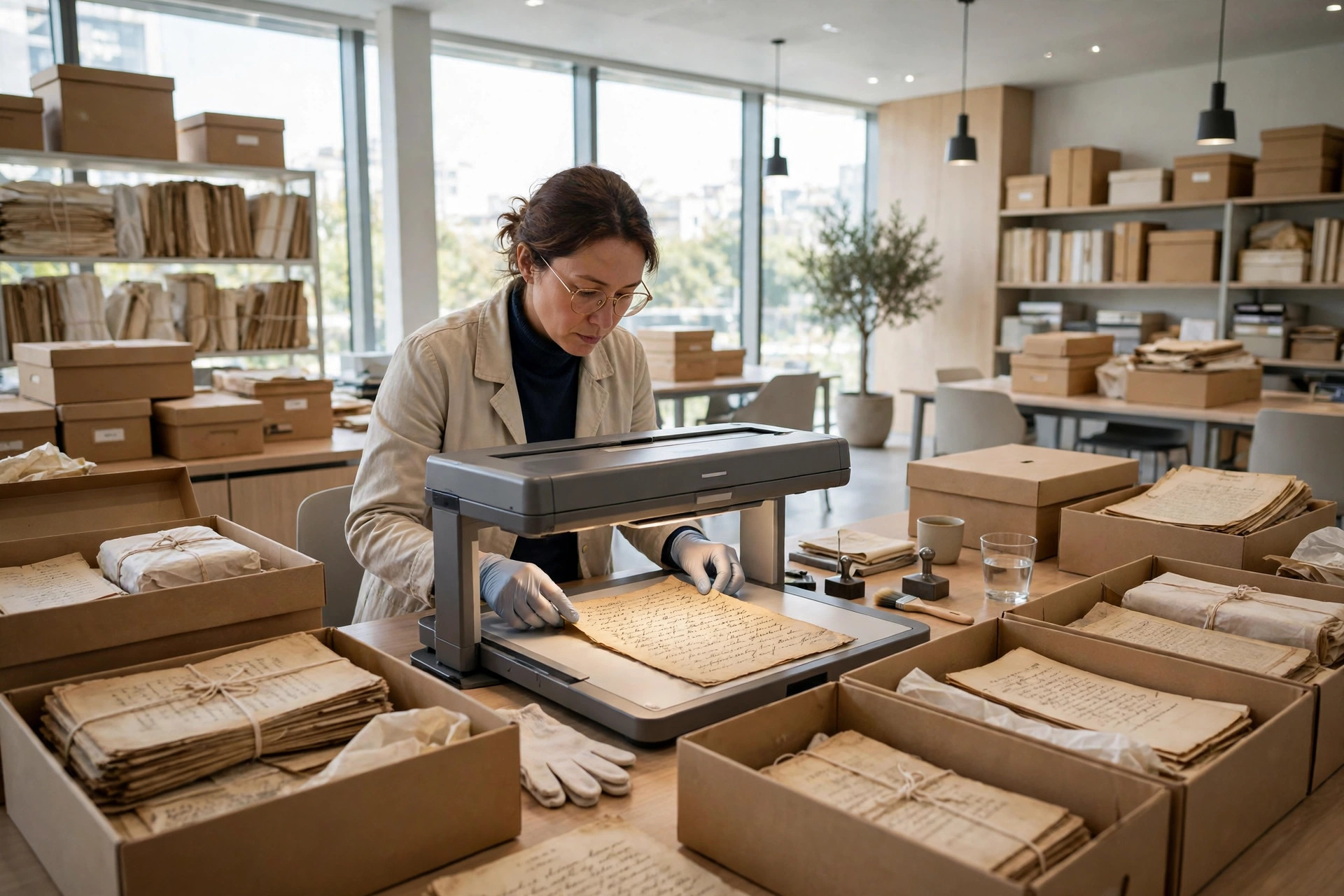
Archivist scanning historical handwritten documents with AI tools for archives in 2026

Archives hold more material than any small team can describe by hand. The best AI tools for archivists turn scans, recordings and photographs into searchable drafts that professionals can check and approve.

Best AI tools for archivists: the 2026 shortlist

We ranked tools by real archive jobs: reading handwriting, cleaning metadata, transcribing oral histories and improving discovery without losing provenance or access controls.

Handwriting, OCR and transcription tools

1. Transkribus — best overall for historical handwriting

Transkribus is built for handwritten and printed historical documents, with public models for many scripts and custom training for a consistent hand. Its free plan includes 50 credits a month; Scholar is listed at €99 a year for 900 credits. PAGE XML, ALTO and searchable PDF exports suit archive workflows, with human review still essential.

2. eScriptorium with Kraken — best open-source option

eScriptorium is a free, open-source handwriting-recognition platform using the Kraken engine, which projects can host themselves. That control suits restricted collections, though setup is more technical than a hosted service.

3. Tesseract — best free OCR for printed text

Tesseract is open-source OCR that turns printed documents and text images into searchable, editable text. It is a sensible first pass for typewritten files and registers; manuscripts usually need a handwriting model.

4. Sonix — best for oral-history audio and video

Sonix focuses on AI transcription, translation and subtitling for audio and video. Test it on your own accents, names and recording quality before committing to a collection-wide workflow.

5. OpenAI Whisper — best open speech model to test

Whisper is an open-source speech-recognition model trained on multilingual audio, useful for drafting interview transcripts. Check names, dates and sensitive passages against the recording.

Metadata, description and discovery tools

6. Preservica — best for preservation plus metadata clean-up

Preservica has added AI tools for standardising metadata, OCR, image categorisation, AV transcription and spotting files that may contain personal information. It can reduce backlogs while keeping review in professional hands.

7. Archively — best for reviewed AI proposals

Archively presents AI-proposed metadata and transcripts for staff to accept, revise or reject field by field, with standards such as EAD3, MODS and IIIF. That review-first approach suits archives needing an audit trail.

8. FromThePage — best for crowdsourced transcription

FromThePage supports crowdsourced transcription, review and indexing for libraries and archives, with hosted plans listed from $100 a month. It fits projects where volunteers transcribe and editors moderate.

9. Recogito Studio — best for annotation and entities

Recogito Studio helps teams annotate texts and images and mark people, places and other entities. It is useful after transcription, when richer description matters more than raw text.

10. ChatGPT or Claude — best drafting assistants

ChatGPT or Claude can draft scope notes, subject suggestions and summaries from text you supply. Use only material you may share, and never publish AI-drafted description without archivist approval.

How to choose the right archive AI tool

Start with the bottleneck. For manuscripts, test Transkribus or eScriptorium on a representative sample and measure corrections per page. For recordings, compare Sonix and Whisper on the same interview. For description, choose tools with field-by-field review, clear provenance and exports your catalogue can ingest.

Best overall: Transkribus, because historical handwriting is the hardest archive-specific problem here and its models, editor and XML exports are designed for that work.

Related guides on NextGenAIVibe

Tags: #AITools #Archivists #Archives #Transkribus #DigitalPreservation #OCR #Productivity

Sponsored

NextGenAIVibe

7 AI Prompts for Heat Pump Engineers 2026: Daily Pack

· November 25, 2026

Heat pump engineer checking an outdoor air source heat pump beside a modern home while reviewing installation notes on a tablet

A heat pump job carries more paperwork than a boiler swap: survey and heat-loss calculation, a quote with options, a multi-day install, commissioning, handover documents and annual servicing. AI cannot size a system or replace your heat-loss software, the manufacturer manual or your competence, but it turns rough notes into clear customer wording fast. These seven prompts speed up the admin while you keep every technical decision.

How AI prompts for heat pump engineers save admin time

Use ChatGPT, Claude or Gemini as a drafting assistant. Paste in your own notes, keep customer details minimal, and check technical statements against the manual and current scheme rules before sending anything.

Today's 7 copy-paste prompts

1. Survey notes into a tidy job summary

Use it for: a clear record to attach to the job.

Turn these survey notes into a job summary headed property, existing heating, radiators, cylinder space, outdoor unit position, electrics and questions to confirm. Do not invent measurements. Flag anything missing. Notes: [paste]

2. Quote options customers understand

Use it for: explaining unit, cylinder or radiator options.

Rewrite this quote in plain British English. Explain each option, what is included and excluded, and what the customer must decide. Keep my prices exactly and never promise savings. Quote: [paste]

3. Heat pump versus boiler, without hype

Use it for: a balanced customer explanation.

Compare an air source heat pump with a gas boiler for a homeowner: comfort, radiators, hot water, noise, maintenance and running costs as variables, not guarantees. End with questions to ask any installer. Details: [paste]

4. Grant paperwork checklist

Use it for: organising Boiler Upgrade Scheme and MCS paperwork.

Make a checklist for this install file: survey, heat-loss report, quote acceptance, commissioning record, warranties, manuals and grant paperwork. Mark evidence to collect and remind me to verify eligibility officially. Stage: [paste]

5. Multi-day install plan and updates

Use it for: diary planning and customer messages.

Turn this plan into a day-by-day schedule plus customer updates for the evening before, each morning and completion day. Include access, parking, downtime and contact details. Plan: [paste]

6. Handover wording for controls and care

Use it for: handover notes customers will read.

Draft a one-page handover note on everyday controls, normal sounds and defrost cycles, simple outdoor-unit checks and when to call us. Remind me to verify it against the manual. System: [paste]

7. Annual service reminder and review request

Use it for: yearly servicing and polite reviews.

Write a friendly annual service reminder with three appointment options, then a separate polite review request. Keep each under 100 words. Business: [paste]

Pro tips for better results

Give the AI real notes, tell it what not to invent, and ask for British English and short paragraphs. Treat drafts as wording help only: sizing, sound checks, electrical work, refrigerant handling and scheme eligibility must come from your calculations, standards and official sources.

Related guides on NextGenAIVibe

Tags: #AIPrompts #HeatPump #ChatGPT #HeatingEngineers #Trades #Productivity #AITools

Sponsored

NextGenAIVibe

Shopify vs WooCommerce vs Wix: Best Ecommerce Platform 2026

· November 25, 2026

Shopify vs WooCommerce vs Wix comparison of the best ecommerce platforms for online stores in 2026

Choosing where to build your online shop is one of the biggest decisions you will make as a seller. In this Shopify vs WooCommerce vs Wix comparison, we look at how the three best-known ecommerce platforms stack up in 2026 on AI tools, pricing, ease of use and room to grow, so you can pick the right home for your store.

Shopify vs WooCommerce vs Wix at a glance

FeatureShopifyWooCommerceWix
Best forGrowing product brandsWordPress users who want full controlBeginners and design-led small shops
Starting priceFrom $29/month billed annuallyFree plugin, plus hosting costsFrom $29/month for the Core plan
Built-in AI toolsShopify Magic and SidekickMainly third-party pluginsWix AI site and text tools
Ease of useEasy, with a low learning curveSteeper, more technicalEasiest for complete beginners
ScalabilityHigh, built for large cataloguesHigh with the right hostingBest for smaller catalogues

Prices above are starting points reported for 2026 and can change, so always check the current plan details on each provider's website before you buy.

Which is the best ecommerce platform for AI tools?

Shopify leads on built-in AI. Its Shopify Magic suite helps write product descriptions and marketing copy and can tidy up product images, while Sidekick acts as an AI assistant inside your dashboard for everyday store tasks. Wix is also strong for beginners, with AI tools that help generate a site design, write text and create product pages. WooCommerce has the least AI built in by default, but WordPress users can add AI through plugins for jobs such as SEO and content, which gives flexibility at the cost of more setup.

Verdict on AI tools

Shopify wins for ready-made AI help, Wix is the friendliest AI starting point, and WooCommerce suits sellers happy to choose and manage their own plugins.

Pricing and running costs compared

Headline prices only tell part of the story. Shopify's entry plan starts at $29 per month when billed annually, but apps and any extra transaction fees for using an outside payment provider can lift the real monthly cost; using Shopify Payments avoids that extra platform fee. Wix Core also starts at $29 per month and is often the simplest option for a small catalogue. WooCommerce itself is free, but you pay separately for hosting, a domain and any premium extensions, and you are responsible for updates and security. That can make WooCommerce cheaper in software terms, yet more hands-on to run.

Verdict on pricing

Wix is the most predictable starting point for a small shop, WooCommerce can be lowest-cost if you already run WordPress, and Shopify is worth its premium when sales volume justifies it.

Ease of use and scalability

Wix has the gentlest learning curve, which is why it suits first-time sellers and creative businesses where design matters as much as the shop itself. Shopify is also straightforward to launch, with checkout, payments and shipping handled in one place, and it is built to scale to large catalogues and multiple sales channels. WooCommerce offers the most control and strong SEO options through WordPress, but that freedom comes with hosting, maintenance and a higher learning curve, so it helps to have technical confidence or support.

Verdict on ease and growth

Pick Wix for the easiest start, Shopify for the smoothest path to scale, and WooCommerce for maximum control.

Overall winner: which should you choose?

For most growing product brands, Shopify is the overall winner in 2026: it combines the strongest built-in AI tools with an easy launch and proven scalability. Choose Wix if you are starting small and want design help with minimal fuss. Choose WooCommerce if you already use WordPress, want full control, and are comfortable managing hosting and plugins. There is no single best choice for everyone, but matching the platform to your catalogue size, skills and growth plans will save you a painful move later.

Related guides on NextGenAIVibe

Tags: #Shopify #WooCommerce #Wix #Ecommerce #AITools #OnlineStore #Comparisons

Sponsored

NextGenAIVibe

How to Use ChatGPT Deep Research in 2026: 7 Steps

· November 25, 2026

Researcher using ChatGPT Deep Research on a laptop to build a cited report from multiple sources

ChatGPT Deep Research is built for questions that need more than a quick answer. Instead of replying in seconds, it plans a research task, searches the public web and any files you provide, and returns a structured report with citations you can check. Used well, it can save hours on market research, study topics and buying decisions. Here is how to get a useful report first time.

Before you start: what you need for ChatGPT Deep Research

Prerequisites: a ChatGPT account with Deep Research available on your plan, a clear research question, and 5 to 30 minutes for the run to complete. Usage limits vary by plan, and the in-product counter shows how many tasks you have left. On plans with a fixed monthly allowance, it resets every 30 days from your first use.

How to use ChatGPT Deep Research in 7 steps

Step 1: Start a Deep Research task

Open ChatGPT and start a new chat. You can type /Deepresearch in the prompt, choose Deep research from the tools menu (+) in the prompt window, or select it from the sidebar menu. All three routes open the same mode.

Step 2: Write a clear research brief

Describe the outcome you need, not just the topic. State the question in one sentence, what the report is for, the scope and timeframe, and the format you want. For example: "Compare three project management tools for a 10-person remote team in 2026, focusing on price, integrations and reporting, in a table with a recommendation."

Step 3: Choose your sources

By default, Deep Research can use the public web and files you upload. Where your plan allows, connected apps such as Google Drive or SharePoint may also be available. To focus on specific websites, open Sites > Manage sites and either restrict research to those domains or prioritise them while still allowing full-web search.

Step 4: Answer clarifying questions

ChatGPT may ask questions before it starts. Answer them properly rather than skipping ahead. This is the cheapest moment to fix the scope, correct a misunderstanding, or add a constraint such as a budget, country or deadline.

Step 5: Review and edit the research plan

ChatGPT creates a proposed research plan before the work begins. Read it and modify anything that looks off. If the plan covers the wrong ground, change it now instead of waiting for a long run to finish in the wrong direction.

Step 6: Follow progress and steer the run

You can follow progress as it runs and interrupt at any time to refine the focus, including adjusting which sources it can access. If you spot a promising lead, ask it to go deeper there; if it drifts, narrow the question.

Step 7: Check the report and its citations

The final report is structured with citations or source links so you can verify the information. Open the key sources, check figures against the originals, and treat the report as a strong draft rather than final proof. Deep Research synthesises available sources; it does not run experiments or independently verify facts.

Pro tips for better ChatGPT Deep Research reports

Pro tip: use Deep Research for multi-step questions that need several sources combined, and use ordinary search when recency matters most. Name anything you have not decided as open, so the model does not quietly decide it for you. For follow-ups, ask targeted questions about one finding at a time instead of restarting the whole task.

Related guides on NextGenAIVibe

Tags: #ChatGPT #DeepResearch #AITools #Research #Productivity #AIResearch #Guides

Sponsored

NextGenAIVibe

10 Best AI Tools for Food Bloggers 2026: Ranked

· November 25, 2026

Food blogger photographing a styled pasta dish beside a laptop, showing AI tools for food bloggers in a bright kitchen

Running a food blog in 2026 means cooking, photographing, filming, optimising and promoting every recipe, often alone. The best AI tools for food bloggers will not cook for you, but they can take over the repeatable work around the recipe: formatting recipe cards, drafting intros, cleaning up photos, captioning videos and checking SEO. Here are the ten picks worth your time, counted down to our best overall choice.

How we picked these AI tools for food bloggers

We favoured tools that speed up verifiable jobs, such as formatting, captions and photo cleanup, and skipped anything that invents recipes or fake food photos. Prices were checked in November 2026; always verify AI-drafted quantities and timings yourself.

The 10 best AI tools for food bloggers, ranked

10. Recipy — A recipe platform built for creators, with embeddable recipe widgets, complete structured data for search engines and AI assistants, and shoppable grocery integration. It is currently free for creators, which makes it an easy test if your current recipe setup feels dated.

9. Gemini — Google's assistant handles recipe-card formatting, meta descriptions and image alt text drafts from your cooking notes. It is a solid second opinion alongside ChatGPT or Claude, especially for quick rewrites in your own voice.

8. Adobe Lightroom — Its AI masking and remove tools clean up props, crumbs and distractions around the plate in seconds. Use it on the scene, never to alter the food itself, so your photos stay honest.

7. Frase — Frase builds research briefs and scores your draft against ranking pages, which suits freelancers and small teams. Starter costs $39 a month billed yearly, undercutting bigger SEO suites while covering briefs, optimisation and audits.

6. CapCut — Auto captions and vertical templates make recipe Reels and Shorts far quicker to finish. The free plan covers the basics, while Pro at $19.99 a month adds 4K export and a monthly AI credit allowance.

5. Descript — Edit talking-head recipe videos by editing the transcript like a document, with Studio Sound and filler-word removal built in. Hobbyist costs $16 a month billed annually, and a free plan offers one media hour a month.

4. Canva — The design workhorse for Pinterest pins, social graphics and branded recipe cards, with templates and AI tools in one place. Pro costs $18 a month, or $144 a year, for one person.

3. Claude — Anthropic's assistant is our pick for long-form drafting where tone matters, such as recipe stories and headnotes. It tends to flag uncertainty rather than bluff, and Pro costs $17 a month billed annually.

2. Surfer — Surfer's Content Editor scores your draft from 0 to 100 against the pages already ranking for your keyword. Discovery starts at $49 a month billed yearly, and Standard adds AI search visibility tracking.

1. ChatGPT — The best all-rounder for food bloggers: turn rough cooking notes into a tidy recipe card, draft intros and FAQs, and brainstorm variations. Plus costs $20 a month, and the free tier is enough to test the workflow.

Best overall: ChatGPT

If you only add one tool, make it ChatGPT. Cook first, paste in your real notes, and let it format and tidy, then check every quantity yourself. Pair it with Surfer and CapCut, and most recipe-post admin disappears.

Related guides on NextGenAIVibe

Tags: #AITools #FoodBloggers #ChatGPT #RecipeBlogging #Top10 #BloggingTips #SEO #ContentCreation

Sponsored

← NewerNewer posts

Blog Archive

Powered by Blogger.

Tana vs Capacities vs Heptabase: Best AI Notes App 2026

Choosing the best AI notes app in 2026 is harder than it looks, because the top tools no longer think alike. Tana thinks in structure, Cap...